How to Lock a PDF File with a Password — Free and Paid Methods

Whether you need to secure a tax document on a Mac, share confidential legal contracts safely, or batch-protect hundreds of records, knowing how to lock a PDF file with password protection is an essential skill.

Updated: August 2026 • 9 min read
Quick Answer

To lock a PDF file for free: Mac users can use the native Preview app (File > Export > Encrypt). Windows users can use the paid Adobe Acrobat Pro or rely on robust, offline third-party software like Folder Lock to encrypt PDF files securely without recurring subscription fees.
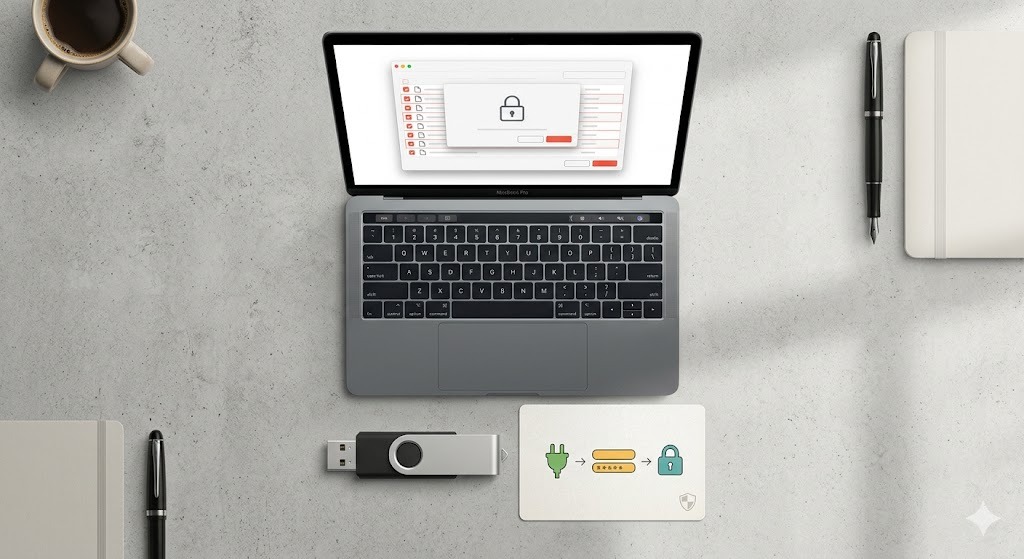

Password lock protecting a sensitive PDF document before secure sharing

Native OS Tools

Free, basic protection built into Mac or Windows. Best for single, non-sensitive files.

PDF Reader Software

Tools like Adobe or Foxit. Reliable, but often require expensive monthly subscriptions.

Dedicated Encryption

Offline software offering AES-256 batch protection without ongoing fees. (Recommended)

In This Guide

Why Document Password Protection Is Not the Same as Full Encryption

Before you learn how to lock a pdf file with password settings, you must understand a critical vulnerability in the PDF format itself. The PDF specification allows for two entirely different types of passwords, and choosing the wrong one leaves your data completely exposed.

A permissions password tells the software to be polite and restrict editing. An open password mathematically scrambles the file so it cannot be read. Never confuse the two.

Permissions Password vs Open Password — Explained

1. The Permissions Password (Owner Password)
A permissions password is designed to restrict document access after the file is opened. You might use this to lock a pdf form from editing or to prevent document copying. However, a permissions password does not encrypt the text of the document. If you search for "lock pdf without password" or "unlock pdf", you will find hundreds of free online tools that can strip a permissions password in seconds because the underlying data was never encrypted.

2. The Document Open Password (User Password)
This is true document password protection. Setting an open password invokes encryption algorithms (ideally AES-256) to scramble the file's data. To access password protected pdf files of this type, the correct password must be supplied to the reader software to mathematically decrypt the contents.

Encryption concept explaining how password-protected PDF data becomes unreadable without the key

Free and Built-in Methods to Lock a PDF File

If you only occasionally need to secure a document, you might be able to use tools already installed on your computer. Here is how to lock a pdf with a password using native or widely available software.

Protected digital documents representing local PDF password protection methods
Secure transfer workflow for sharing protected documents without exposing the original file

The Tool We Recommend for Most Users

Native tools are fine for single files, but if you need to batch password protect pdfs, secure office files before emailing, or want military-grade AES-256 encryption without paying expensive monthly Adobe subscriptions, we recommend Folder Lock.

Local Offline Encryption Batch Processing No Cloud Uploads AES-256 Standard

Instead of opening PDFs one by one in a reader, Folder Lock creates a secure virtual vault on your hard drive. You can drag and drop hundreds of PDFs, protecting them instantly. Because it operates entirely offline, your sensitive data never touches a third-party server.

Folder Lock 10 feature banner for offline file and document protection
Folder Lock 10 promotional visual for protecting sensitive files and documents
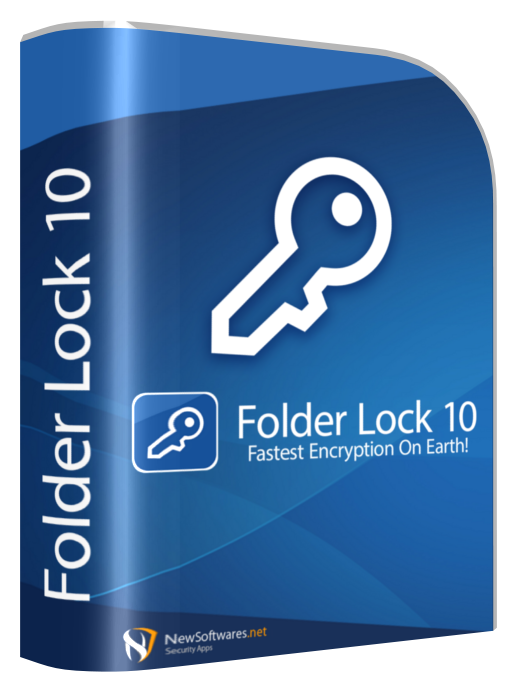
Folder Lock 10 software boxshot for dedicated offline document security

What Makes Dedicated Software Better?

If you are managing sensitive information, relying on basic PDF reader features might not be enough. Here is what a dedicated file lock tool provides.

Batch Password Protect Multiple Files

Instead of locking files individually, you can secure entire directories of PDFs, Word docs, and Excel files simultaneously in a single virtual locker.

Efficiency

Zero Cloud Exposure

Unlike online converter tools, offline encryption ensures your unencrypted original files never leave your computer's local hard drive.

Privacy

AES-256 Standard

Applies the same military-grade encryption algorithm trusted by compliance frameworks to protect document contents from brute-force access.

Security
Folder Lock 10 main screen showing the desktop security workspace
Folder Lock 10 lockers screen for organizing encrypted document containers
Secure virtual drive illustrating encrypted storage for batches of PDF files

PDF Protection Methods Compared

Protection Method Offline Processing Batch Protect No Recurring Fee AES-256 Support
Mac Preview
Free Online Tools
Adobe Acrobat Pro
Folder Lock
Data security software platforms compared for protecting PDF and office documents

Document Password Strength — What Really Matters

A locked PDF file is only as secure as the password guarding it. Offline documents are particularly vulnerable to brute-force attacks, where automated tools guess millions of passwords per second. To ensure your document password protection holds up, use our offline evaluator below.

File security shield representing strong AES-256 protection for password-locked PDFs

Password Strength Evaluator

Test your password locally. No data is sent to any server.

Waiting for input...

Troubleshooting: Unlock a Password-Locked PDF File

We see thousands of queries from users asking how to edit lock pdf file or how to open lock pdf file after forgetting the password. If you are the owner of the document, here is how you manage recovery.

Data protection vault illustrating controlled recovery of encrypted PDF files

How do I remove password protection from a document I own?

If you know the password but simply want to remove the restriction so you don't have to type it every time, you don't need special software. Open the PDF in Google Chrome, enter the password to view it, and then click the Print icon. Choose "Save as PDF" as your printer destination. The newly saved file will be an unprotected copy.

Can a password-protected document be hacked?

If the PDF is secured with a permissions password, yes. Many free tools can strip this flag. If the PDF is secured with a modern open password using AES-256 encryption, it cannot be "hacked" or bypassed. It can only be opened if the password is guessed (brute-forced). If you forget the password to a heavily encrypted file, the data is generally unrecoverable.

Recovering Access with Folder Lock

If you used our recommended tool to lock a folder containing your PDFs, and you forget your master password, you cannot simply bypass it. Folder Lock's AES-256 encryption prevents unauthorized access by design. To recover your data, you must use the official Master Key method linked to your registered email address and software serial number.

Pricing Comparison

While native OS tools are free, they lack batch capabilities. Dedicated PDF editors often require ongoing subscriptions. Here is how Folder Lock compares.

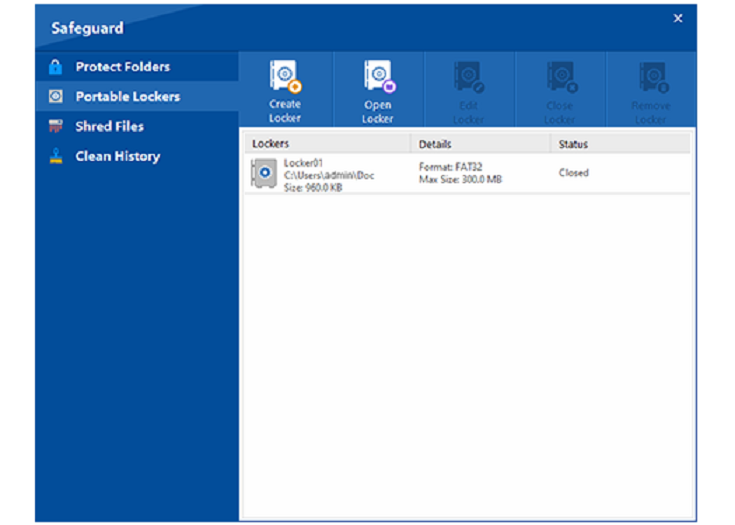
Folder Lock 10 Protect Folders screen used for safeguarding document collections

Native / Free Tools

  • Basic password protection
  • One file at a time
  • No secure backup vaults
  • Files remain visible on the OS

Best for occasional, low-risk documents.

Folder Lock Full Version

  • Military-grade AES-256 encryption
  • Batch protect entire folders
  • Hide files completely from the OS
  • One-time purchase, no subscription
View Full Version Pricing →

Frequently Asked Questions

Windows 10 does not have a native "save to PDF with password" feature built into its default print-to-PDF engine. You must use a third-party application. If you have Microsoft Word, you can open the PDF in Word, go to File > Info > Protect Document > Encrypt with Password, and save it back as a PDF. Alternatively, use a dedicated tool like Folder Lock.
An open password actually encrypts the contents of the file, making it mathematically unreadable without the password. A permissions password simply sets a flag that tells compliant PDF readers (like Adobe) not to allow printing or editing. Permissions passwords do not encrypt the document and are easily bypassed.
If the file has a true open password (encryption), Google Drive or Google Docs cannot index, preview, or open the file without you providing the password. If it only has a permissions password, Google's viewer will often display the file and may even allow you to bypass the printing restrictions.
If you apply a standard PDF Open Password using Adobe Acrobat or Mac Preview, the recipient only needs a standard PDF reader (like Chrome, Edge, or Apple Preview) to open it. They do not need the specific software you used to lock it. However, if you use a proprietary container like a Folder Lock portable locker, they will need the corresponding software to decrypt the container.
Standard PDF password protection cannot prevent a user from taking a screenshot or a photograph of their monitor. To prevent screenshots, you require advanced Digital Rights Management (DRM) software or secure viewing rooms, which goes beyond standard file encryption.

The Bottom Line

While built-in tools can handle basic document password protection, professionals handling sensitive data require true, batch-capable encryption. For securing PDFs, Office files, and archives efficiently without recurring fees, dedicated software is the safest choice.

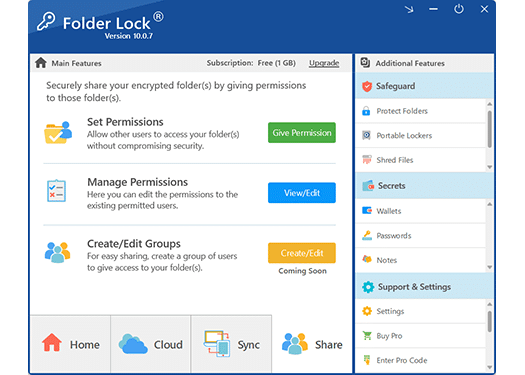
Folder Lock file sharing screen for securely distributing protected document files
Try Folder Lock Free → Get the Full Version →